
nanothehedgehog
Newcomer
Some of you played a Sonic 1 hack with custom background instead the basic one like Sonic Sunventure, Sonic and Ashuro, Sonic Borderline etc. You asked yourself (i wish if my rom hack have the Sonic 3's Title screen background or anything else instead the basic ones), well you came to the right place.
Today i'm gonna show you a way to add any custom background in any zone in Sonic 1, In this tutorial we are only replacing Green Hill's background, so if you used the same steps just to add a background to Marble Zone, Star Light Zone etc, it will basically work (it works in any sonic 1 disassembly but not the outdated ones like the old SVN/Github disassembly and the 2005 Hivebrain disassembly).
Requirements:
A Sonic 1 disassembly, You can find it in this place.
Any version of SonLVL, you can donwload it in this website.
Follow this tutorial so it will not show VRAM issues when adding a background
The latest version of IrfanView.
If you used an outdated disassembly you need to download SonLVL Updater then download the SonLVL INI folder, select the correct type so it can work.
And now go to Green Hill Zone Act 1 then go to Art and here is what you need to do:
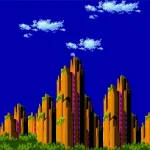
Now you need to have a custom background sprite that uses the 256X256, we are using this background as an example:
Now open IrfanView and then open Image and then go to Decrease Color Depth you will see this:
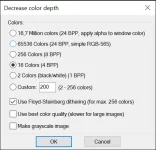
It should be the 16 Colors choice, then click ok.
Now open Image again and then go to Palette/Edit Palette and you see this:
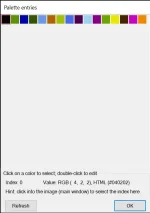
Open SonLVL again then put the RGB value in the correct place (the best place to put them is in the 3rd and the 4th palette line because the first two are getting used by sonic and other badniks).
After putting the palettes in the right place, go to Art/Chunks in SonLVL and the click on Import, then choose the background you wanna add and you have basically add the background, now before saving it and then building the rom you need to place them in Background, now save them and build the rom, you will not have any troubles after all
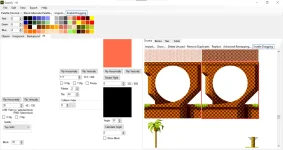
So if we did $7F + $35 we got $B5, now replace $B6 with $B5 and after building the rom the issue is fixed.
For SLZ use the same tech then replace the first two with the correct loop id.
And then you done it, enjoy having a custom background for any level you want and happy hacking fellas.
Today i'm gonna show you a way to add any custom background in any zone in Sonic 1, In this tutorial we are only replacing Green Hill's background, so if you used the same steps just to add a background to Marble Zone, Star Light Zone etc, it will basically work (it works in any sonic 1 disassembly but not the outdated ones like the old SVN/Github disassembly and the 2005 Hivebrain disassembly).
Requirements:
A Sonic 1 disassembly, You can find it in this place.
Any version of SonLVL, you can donwload it in this website.
Follow this tutorial so it will not show VRAM issues when adding a background
The latest version of IrfanView.
Part 1: Adding the background.
Now open SonLVL and then open the SonLVL.ini that exist in the source code.If you used an outdated disassembly you need to download SonLVL Updater then download the SonLVL INI folder, select the correct type so it can work.
And now go to Green Hill Zone Act 1 then go to Art and here is what you need to do:
- Delete the background's Chunk data.
- Delete the blocks and the tiles that was used in the background data (But do not delete all of them because some blocks and tiles shares with other chunks likle the loop etc).
Now you need to have a custom background sprite that uses the 256X256, we are using this background as an example:
Now open IrfanView and then open Image and then go to Decrease Color Depth you will see this:
It should be the 16 Colors choice, then click ok.
Now open Image again and then go to Palette/Edit Palette and you see this:
Open SonLVL again then put the RGB value in the correct place (the best place to put them is in the 3rd and the 4th palette line because the first two are getting used by sonic and other badniks).
After putting the palettes in the right place, go to Art/Chunks in SonLVL and the click on Import, then choose the background you wanna add and you have basically add the background, now before saving it and then building the rom you need to place them in Background, now save them and build the rom, you will not have any troubles after all
Part 2: Fixing the loop not working in GHZ/SLZ. (skip this part if you're using the Project 128 disassembly)
In sonic 1 there are two routines are used to create the looping effect, you will find the first one in 01 Sonic.asm because this routine is reponsable of how sonic will behave if he touched a type of the chunk. The other one is in DynamicLevelEvents.asm (LoopTileNums), this routine will handle what chunk id will have the loop effect or forcing sonic to roll untill its a different chunk, to fix it we need to find the correct for the cloned loop, the cloned loop's id is placed in this routine so if we put the right value by doing simple hex map ($7F+(the cloned loop id)) we basically fixed the issue for example in this screenshot the cloned loop id is $35:So if we did $7F + $35 we got $B5, now replace $B6 with $B5 and after building the rom the issue is fixed.
For SLZ use the same tech then replace the first two with the correct loop id.
And then you done it, enjoy having a custom background for any level you want and happy hacking fellas.
Last edited: